Deploying/publishing a service
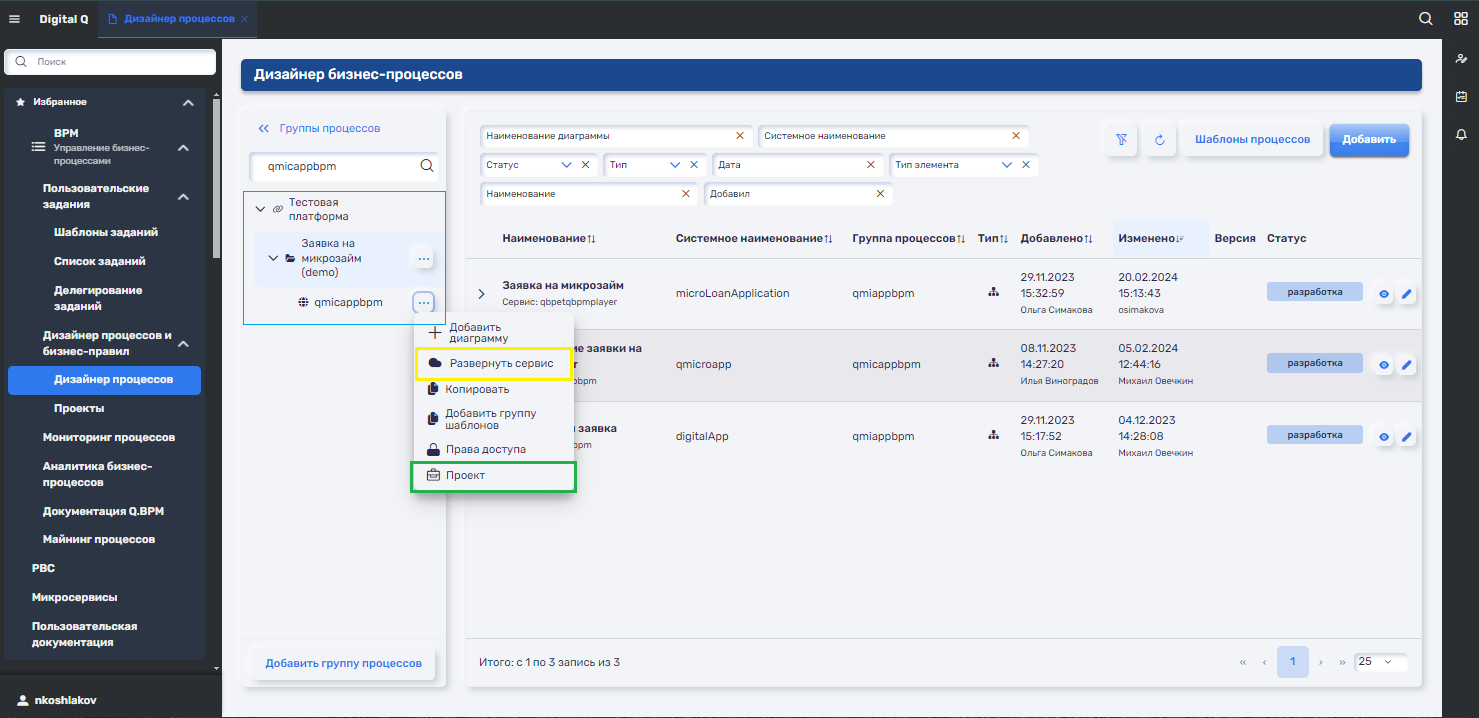
In the Process Designer, diagrams are grouped into process groups. There are several types of process groups:
- simple: created on the Digital Q.BPM platform
- platform: associated with the "Platform" entity of Q.Archer, automatically created in Digital Q.BPM after publishing the first PBC ("Test Platform" in the screenshot)
- PBC: Associated with the Q.Archer "PBC" entity, automatically created in Digital Q.BPM once the PBC is published. Is the 2nd level, under the group with the "Platform" type
- service: 3rd level, is a child group for the "PBC" type and refers to the process execution service ("qmicappbpm" in the screenshot).
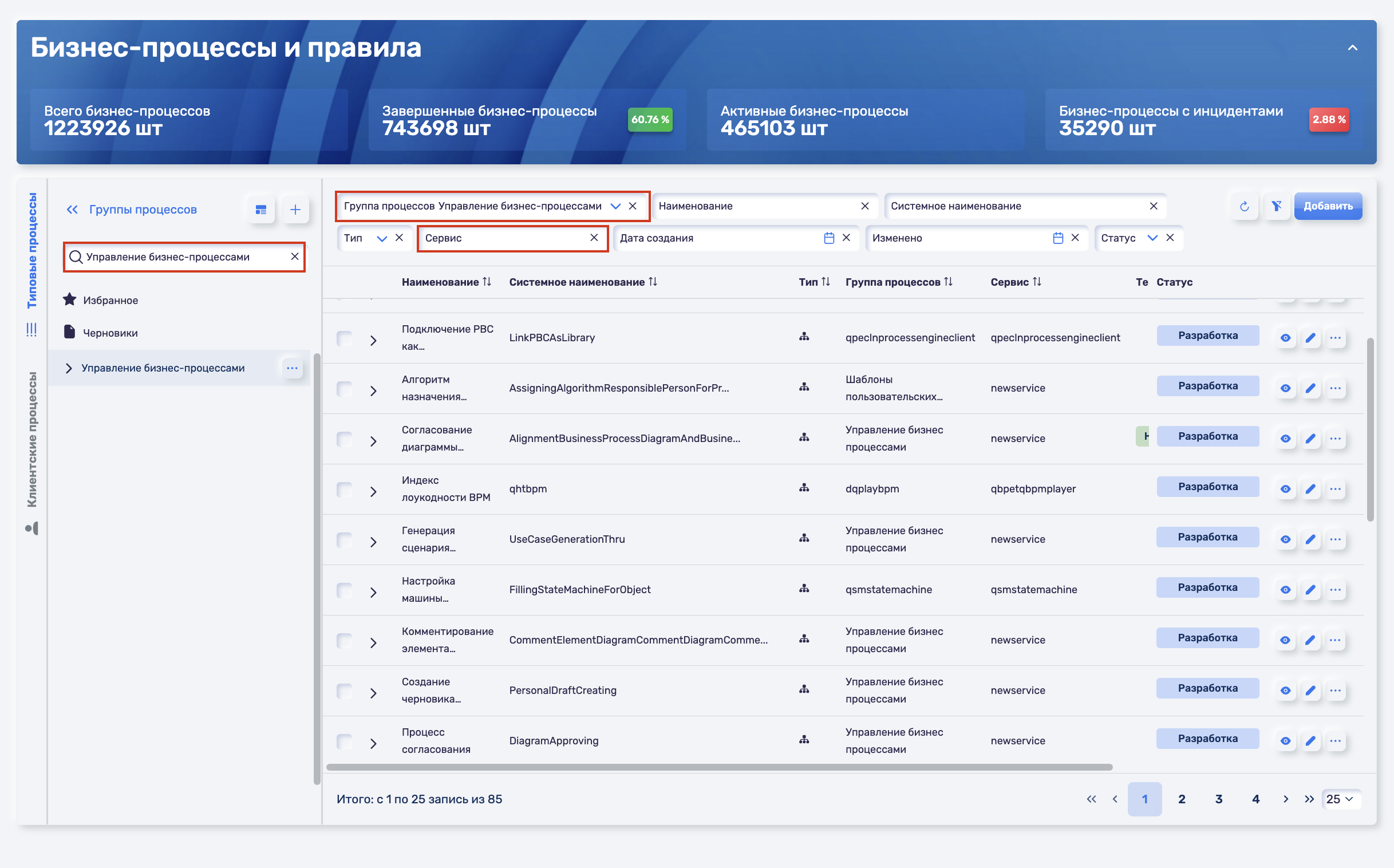
To search for a process group in the general search on the left, enter the platform name.
Filters have also been added above the process list.
Creating a Diagram
-
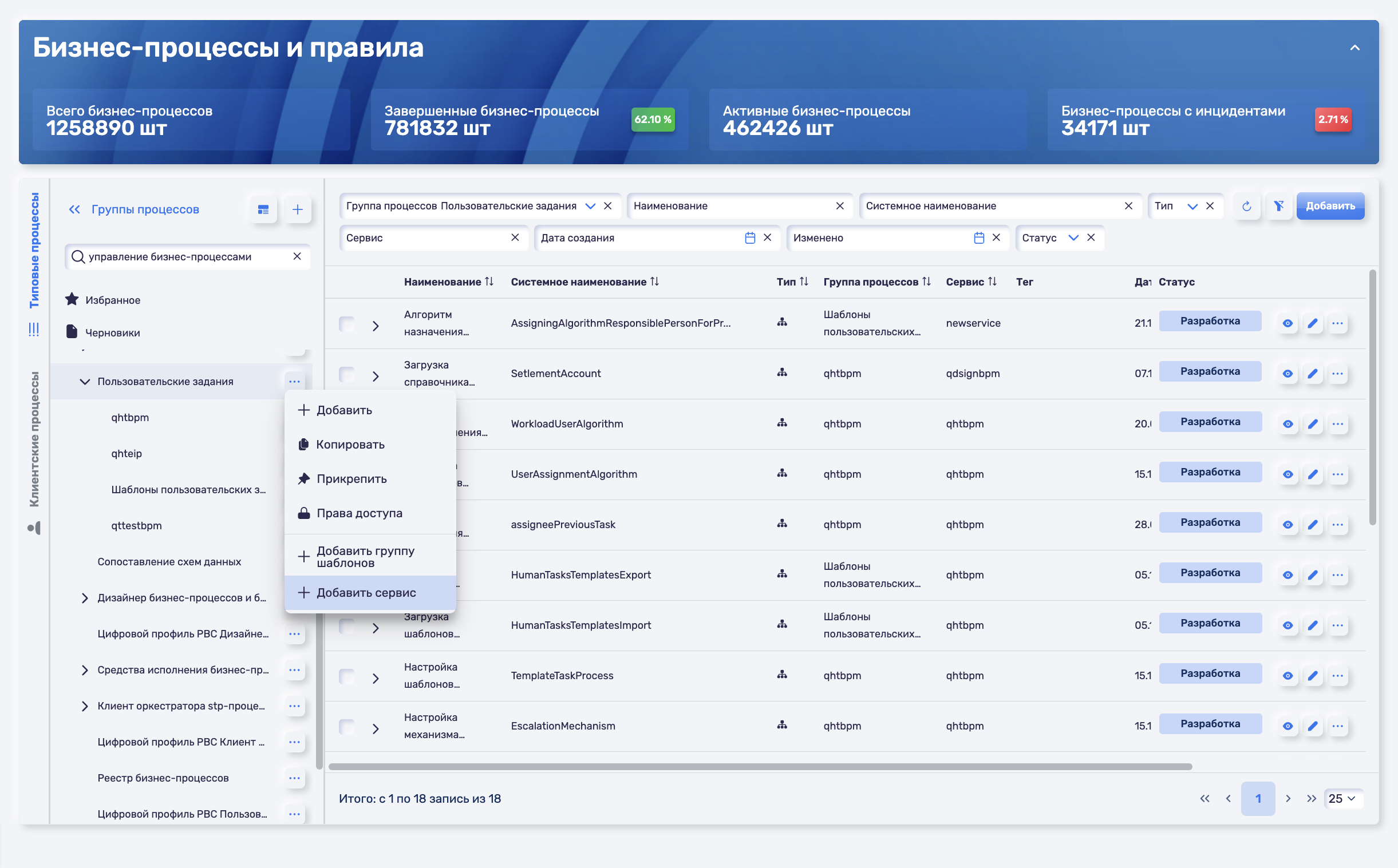
Create a service for the sub-product (PBC). To do this, open the context menu opposite the PBC (the "Ellipsis" button) and select the "Add service" item.
-
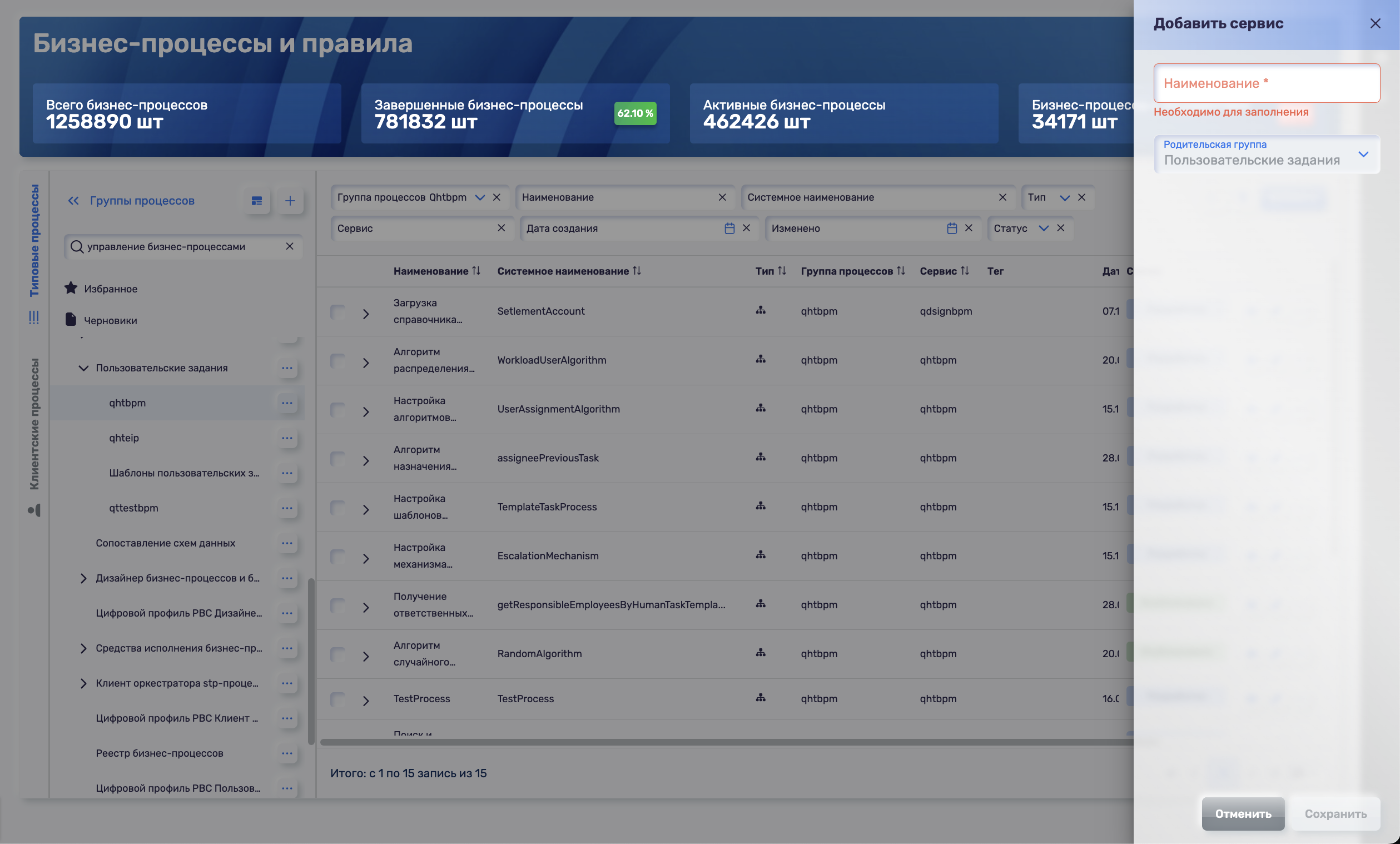
In the modal window that opens, enter the service name.
-
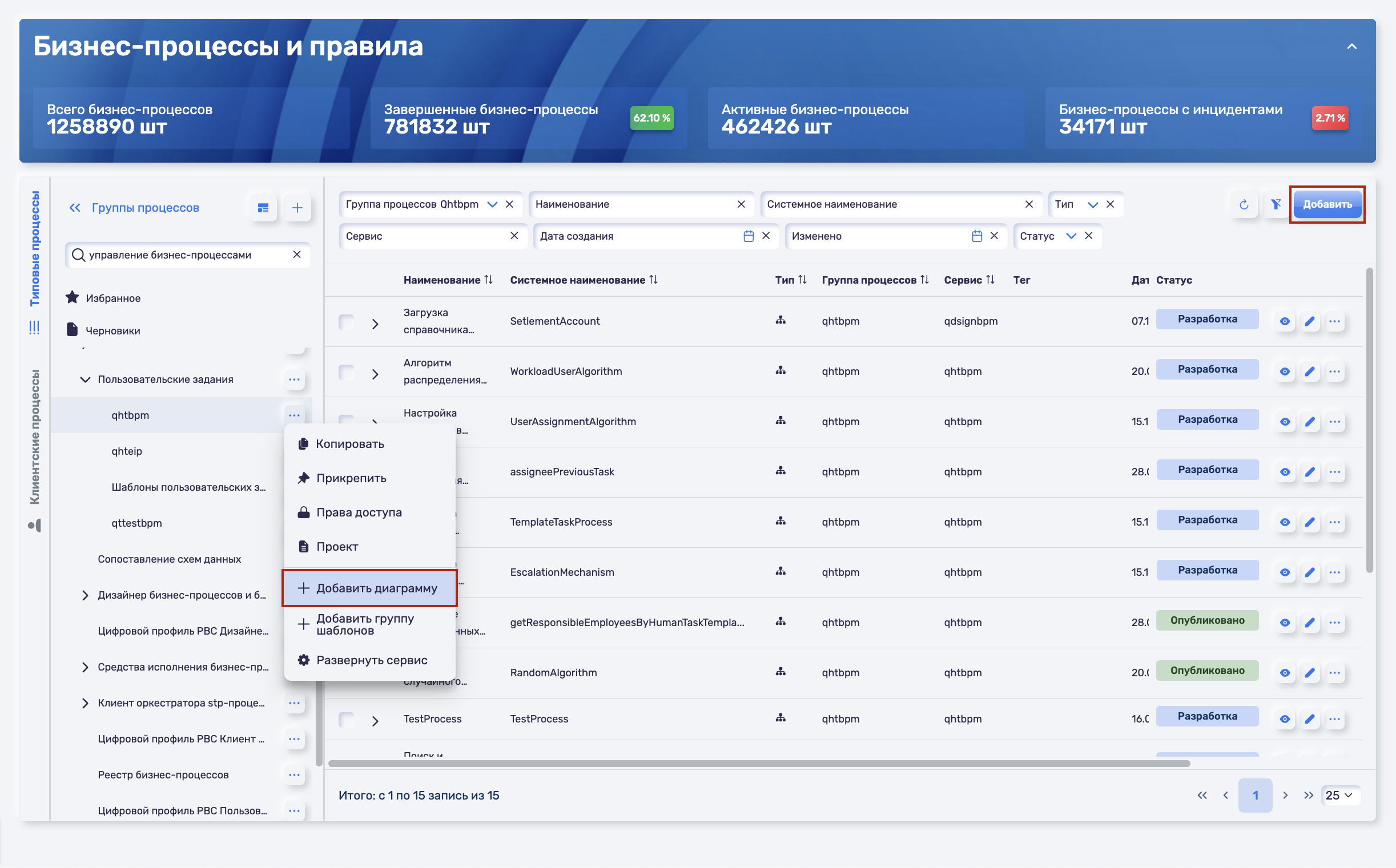
Click the "Add" button on the Business Process Registry form or select the "Add diagram" item in the context menu opposite the service.
-
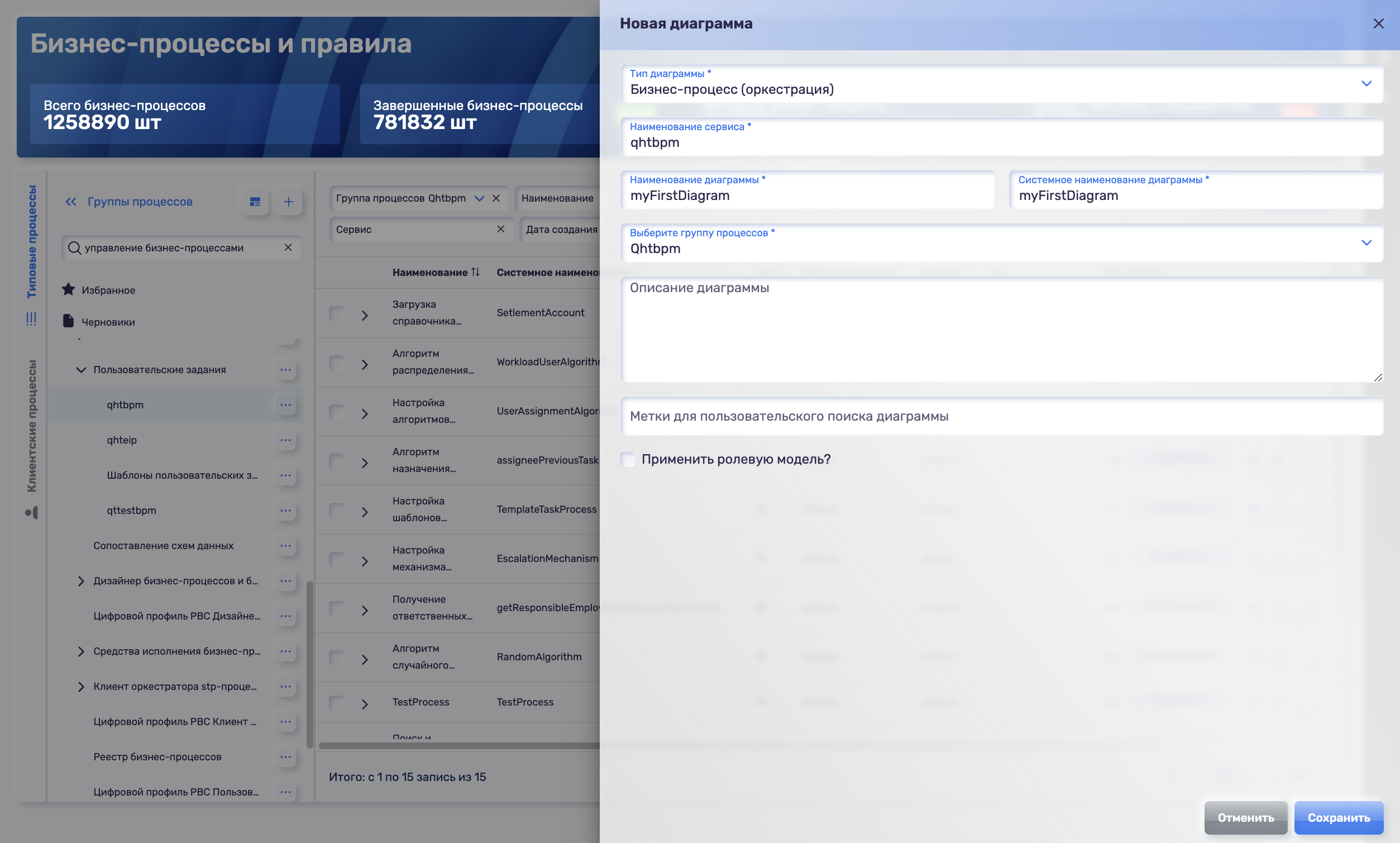
In the "Select process group" item, the execution service must be specified. Click the "Save" button.
-
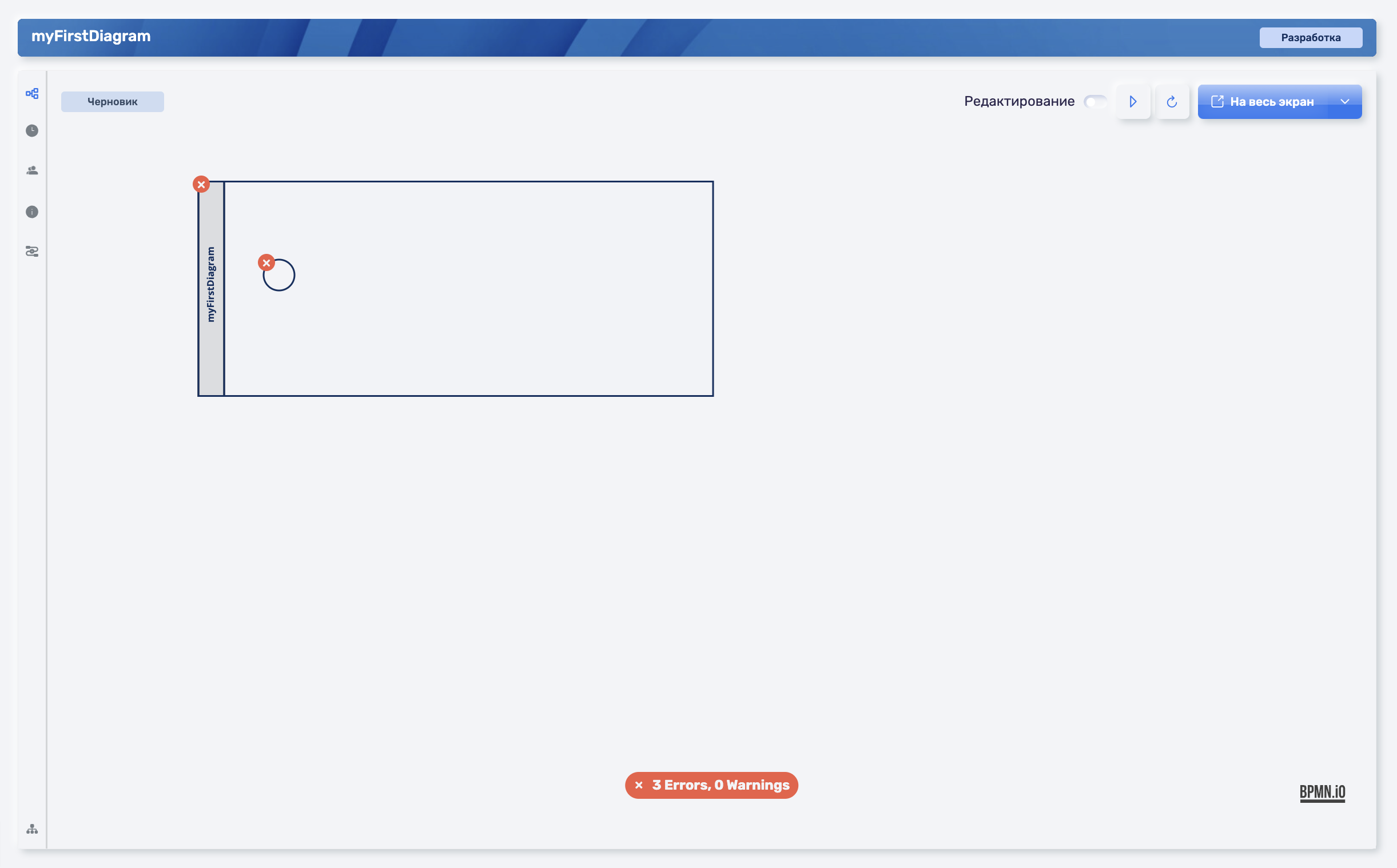
Upon successful completion of the steps, the diagram editor window will open with the created diagram in the "Development" status. For further design, you need to switch to editing mode.
Creating an Execution Service
To publish the created diagram, the execution service that was specified when creating the diagram must be installed on the test stand. There are two options for installing the execution service on the test stand:
- Deployment/publication of the service through the BP Registry.
- Publication of the service through Projects.
To create a service, the Business Process Registry must already have a registered product (platform in Q.Archer terms) and sub-products (PBC in Q.Archer terms).
Deployment/Publication of Service through BP Registry
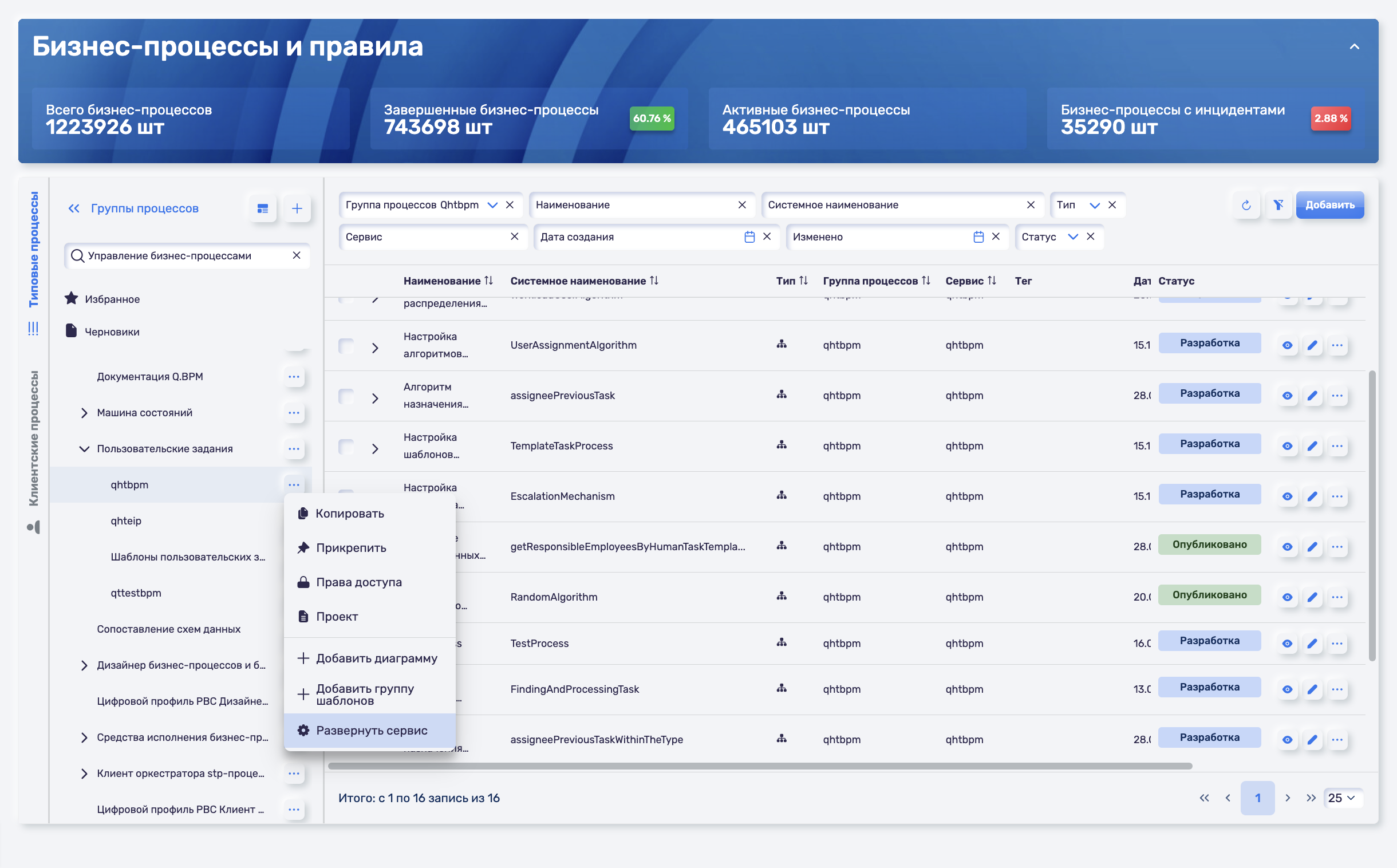
To deploy the execution service, in the service context menu (the "ellipsis" button), select "Deploy service" - a modal window will open.
In the modal window, you need to select the diagrams for publication. Click "Save".
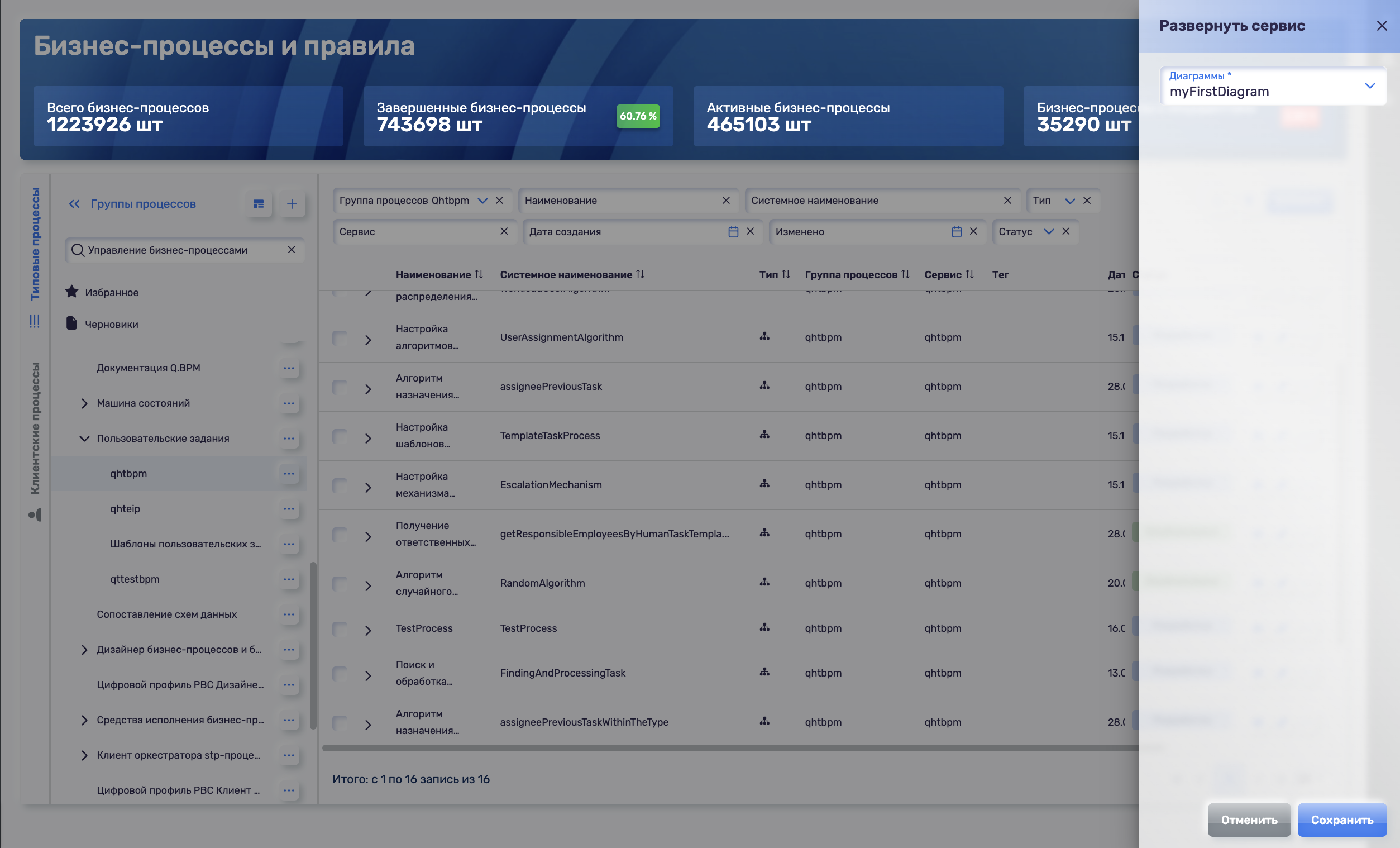
If there is no diagram, you can create an "empty" diagram (a process pool with start and end events).
After performing the "Deploy service" action:
- A repository with the base image of the process execution service is created (if it was not created). If the repository was created, it is updated;
- The selected diagram will be added to the repository, which will be automatically published when the service is started on the test stand;
- The build pipeline for the published service will start;
- Rights to the repository are granted to the employee who deployed the service.
Publication of Service through Projects
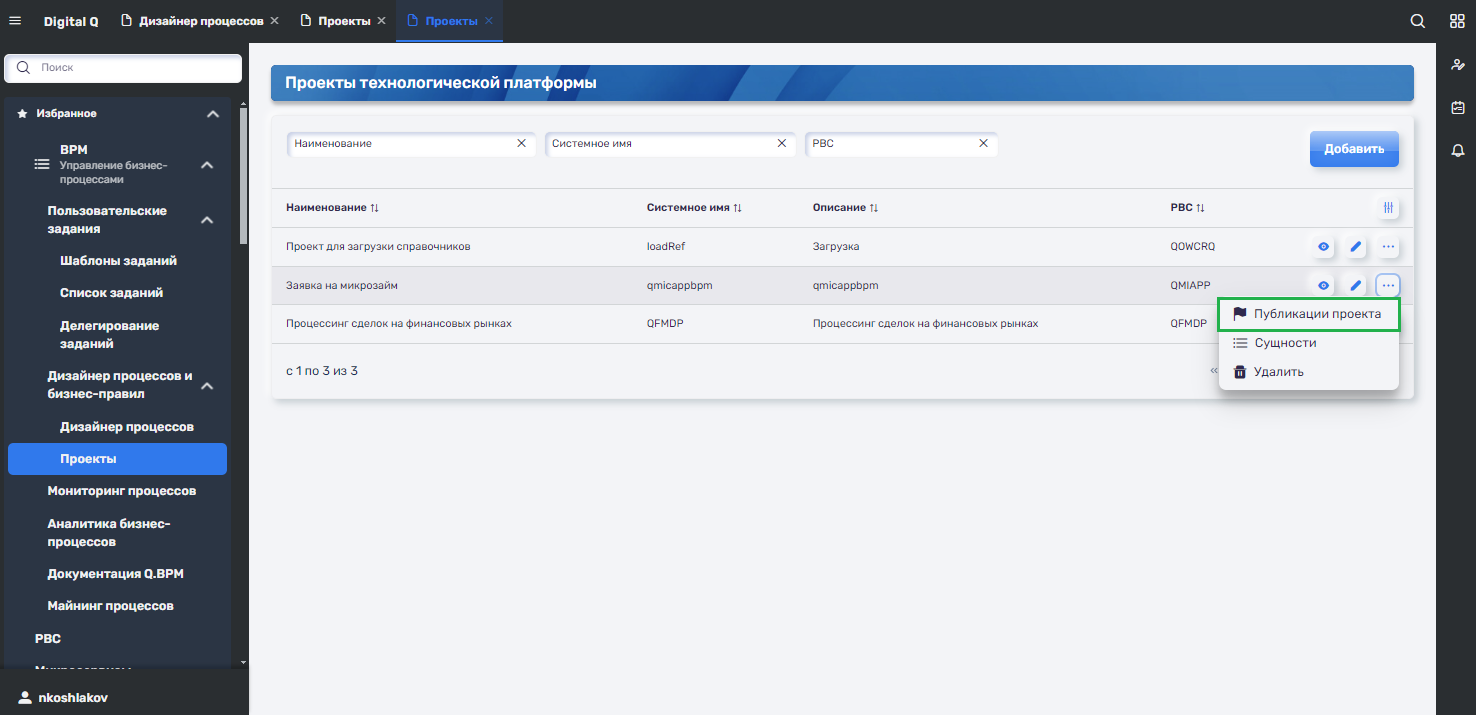
To publish a project, you need to add a process group of type "service" to it. To do this, click the "ellipsis" button in the dropdown list, click "Projects" - the interface will open.
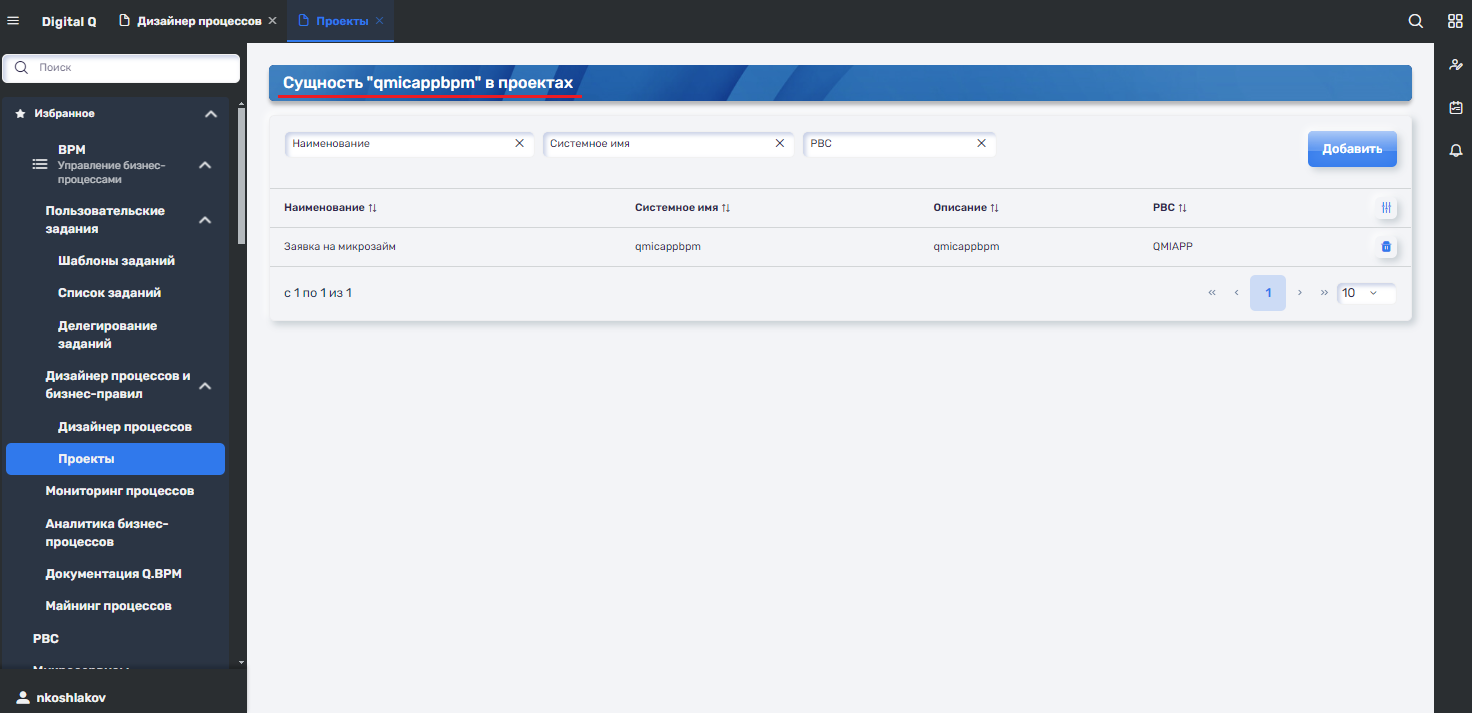
In this interface, the selected process group of type "service" is linked to projects from the previous step. In this case, the linking is done to only one project.
After linking, you can publish the project - this will publish all services included in the project:
- A repository with the base image of the process execution service is created (if it was not created);
- The build pipeline will start for each service.
Building and Installing the Service on the Test Stand
For a successful build, check the relevance of the base image and the correctness of the settings Release tags are removed, so you need to specify the current image manually
After installation on the test stand, you will be able to publish diagrams to your execution service.
Common errors during publication and execution of a business process
Service is unavailable when publishing a diagram
Solution: The service is unavailable. Make sure that the execution service to which the diagram is being published is installed on the test stand, it is running, working, swagger or actuator opens, and there are no errors in the logs.
Sometimes the error is related to the case in the service name when creating the diagram. In such a case, simply edit the diagram and rewrite the service name in lower case.
In the Business Process Registry, the service name is written in the general list of diagrams in the Service column and inside your diagram on the Process Information tab.